
Quick commands & terminal
They arrive with the project
You rarely start from an empty list. XTop reads the project's own files and turns what it finds into ready-made commands, so a project you import already has npm run dev in its menu — nothing to type from memory.
Where they are read from
| File in the project | What becomes a command |
|---|---|
package.json | every entry under scripts, minus npm's own lifecycle hooks (postinstall, prepare, …) |
composer.json | every entry under scripts, minus composer's pre- / post- hooks |
artisan | php artisan serve and php artisan migrate |
Makefile | every target |
pyproject.toml | the entry points under [project.scripts] or [tool.poetry.scripts] — or, if there are none, install and test |
go.mod | go run ., go build ./..., go test ./... |
Cargo.toml | cargo run, cargo build, cargo test |
docker-compose.yml (or compose.yaml) | compose up, compose down, compose logs |
The tool it uses comes from your lock file. A package.json script becomes pnpm dev if there is a pnpm-lock.yaml, yarn dev for yarn.lock, bun run dev for a bun lock file, and npm run dev if there is none. A packageManager field in package.json wins over all of them. Python works the same way: uv run with a uv.lock, poetry run with poetry.
Each command is labelled with the file it came from, so if you end up with both npm run test and make test you can still tell them apart.
Where you are asked, and where you are not
- Importing a folder — Add the commands found in each project is ticked by default, and the scan shows a count next to each project. Everything found is added.
- Adding or editing a single project — the list appears in the dialog with everything ticked, and you untick what you don't want.
- Any time later — Detect commands inside Manage commands… re-reads the project.
Nothing is added twice. If the project already has a command with the same line, it is skipped — so running detection again on an old project only adds the scripts that appeared since.
New commands are added as private and run in the project's default place. You can change both afterwards, like any other command.
It only reads, it never runs
Detection reads files and nothing else — no part of your project is executed. If a file cannot be read (a package.json with a trailing comma, say), it just adds nothing and the other files are still read. A single project gives at most 40 commands.
Three scopes
Every command belongs to one of three scopes, and the scope decides where it shows up:
| Scope | Offered in | Stored on |
|---|---|---|
| Private | one project | that project |
| Collection | every project in that collection | the collection |
| Global | every project | once, at the top level |
Global commands are saved once, not copied into every project, so editing npm install changes it everywhere at the same time.
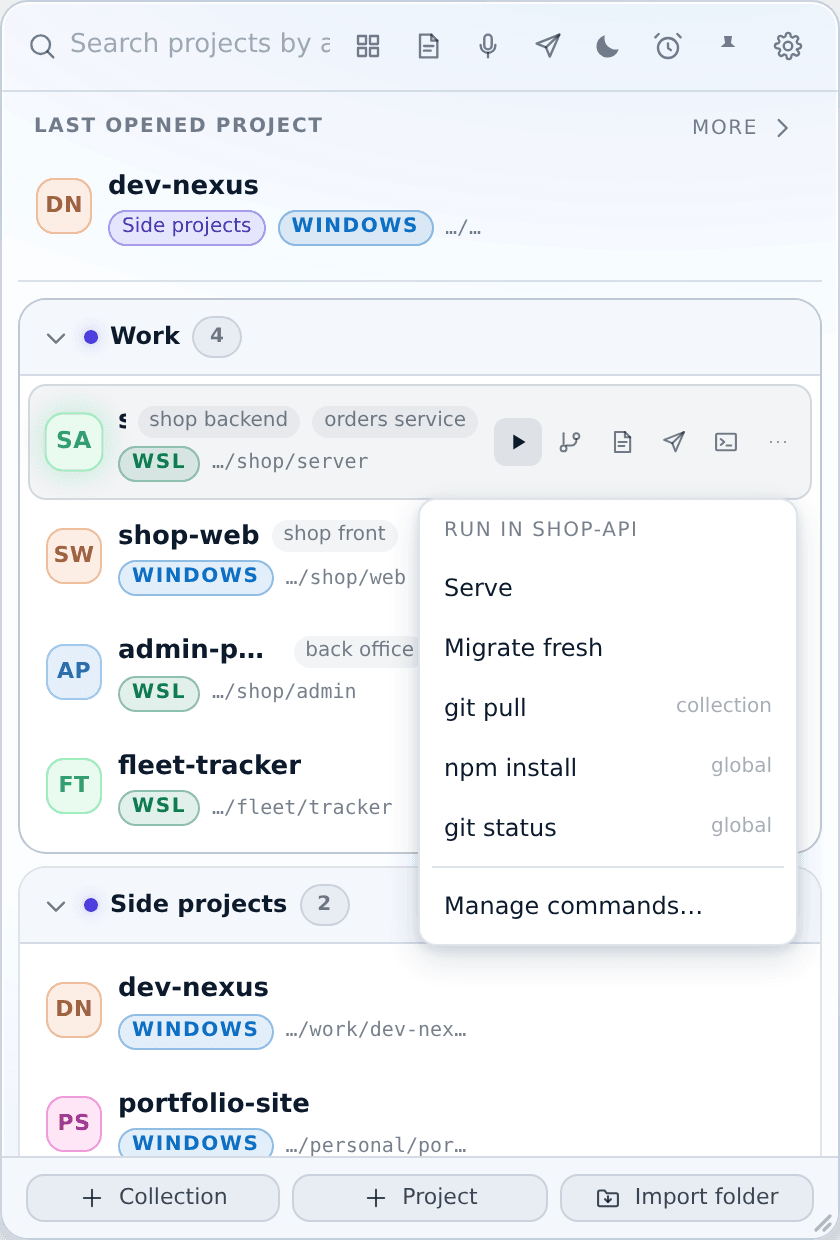
Manage them per project with ⌘ → Manage commands…, or for a whole collection with the ⌘ button in the collection header.
Each command has a label (what you see), the command line itself, and where to run it: the project's default, PowerShell, cmd, Git Bash, WSL, or an external terminal window.
Inside that dialog:
- A search box filters all three scopes at once, so a project with thirty commands is still one keystroke away from the one you want.
- ▶ Run here on any row runs it straight from the dialog, without closing it and going back to the row.
Running one
Clicking a command opens the terminal window and starts a session.
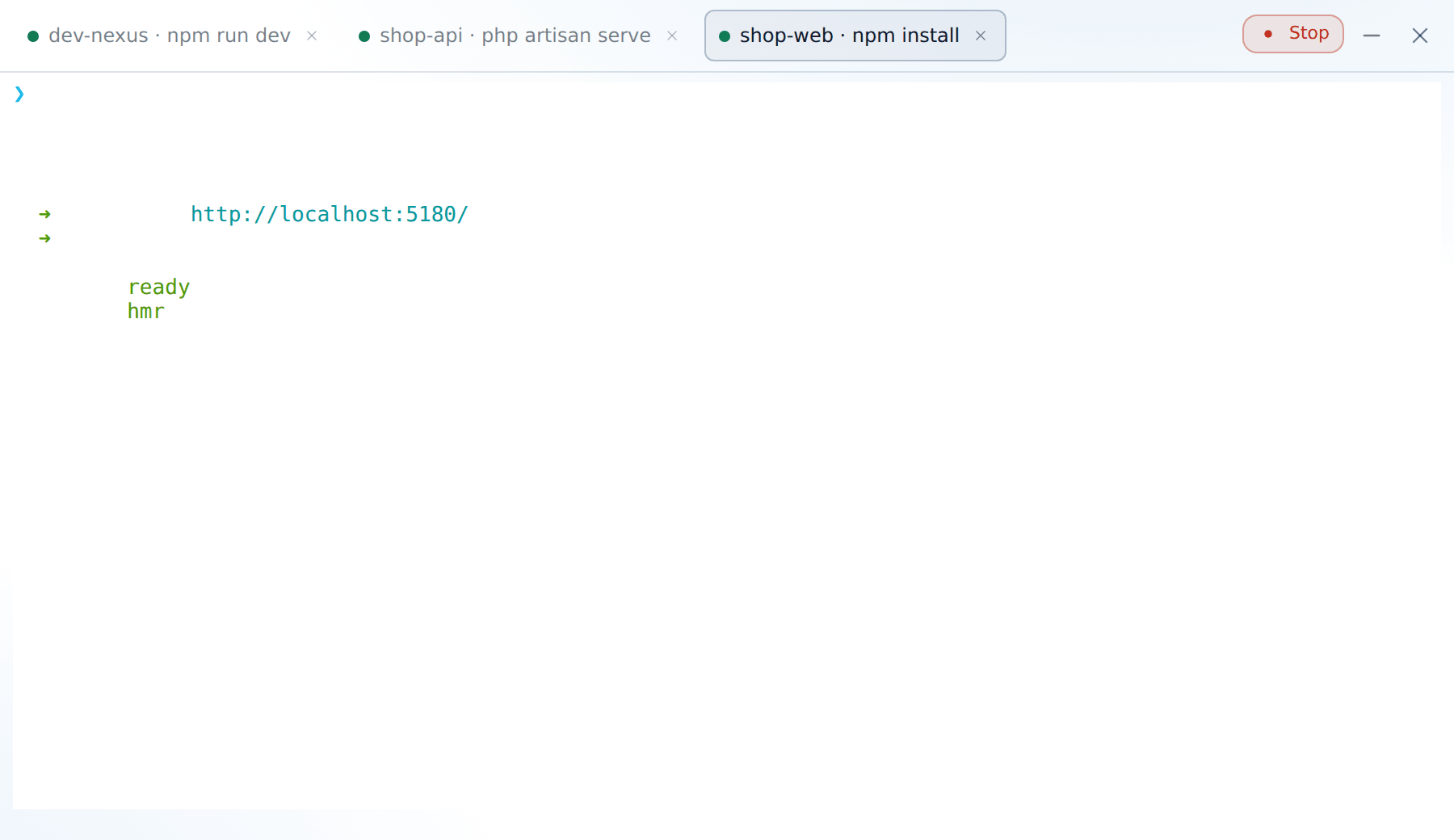
- A tab per session. Switching tabs does not lose anything — each session keeps its own scrollback.
- The dot is the state. Green while the process is running, grey once it has exited.
- ■ Stop kills the running command; the tab and its output stay.
The shell follows the project's environment: wsl.exe -d <distro> --cd <path> for WSL projects, PowerShell for Windows ones.
Opening a terminal without running anything
You do not have to run a command to get a shell. The + button in the tab bar opens an empty terminal in the same project as the tab you are looking at — "another one of these" is what it is usually for.
The + copies the tab you are looking at, shell and all: a + from a PowerShell pane gives you another PowerShell pane, even when the project itself is set to WSL.
The arrow next to it opens a picker for somewhere else:
- Type to search any project by name, alias or collection.
- Root gives you a shell in your home folder, belonging to no project.
Pick a shell
On Windows the picker starts with a row of shells.
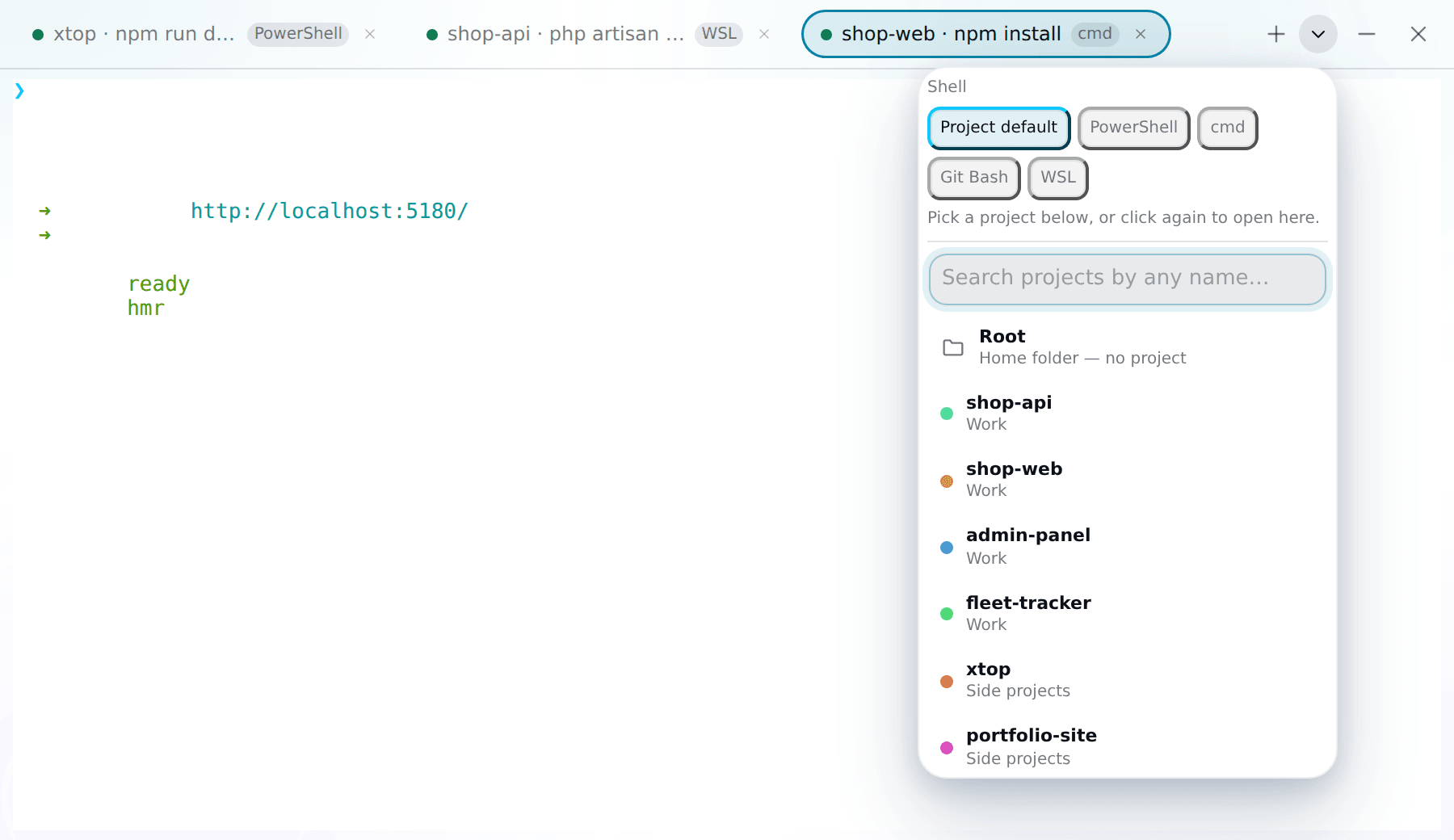
| Chip | Runs in |
|---|---|
| Project default | Whatever the project's environment says — Windows or WSL |
| PowerShell, cmd, Git Bash | That shell, whatever the project says |
| WSL | Your default distro, in the project's folder |
Pick a shell, then pick a project. Or click the shell you already picked a second time and it opens straight away in the project you came from — which is the common case: same folder, different shell.
WSL stays in the row but greyed out when it is unavailable; point at it and it says why.
On anything that is not Windows there is only one login shell, so the row is hidden.
Reopen a tab in another shell
Every tab carries a small tag naming the shell it is running in. The tag is a button.
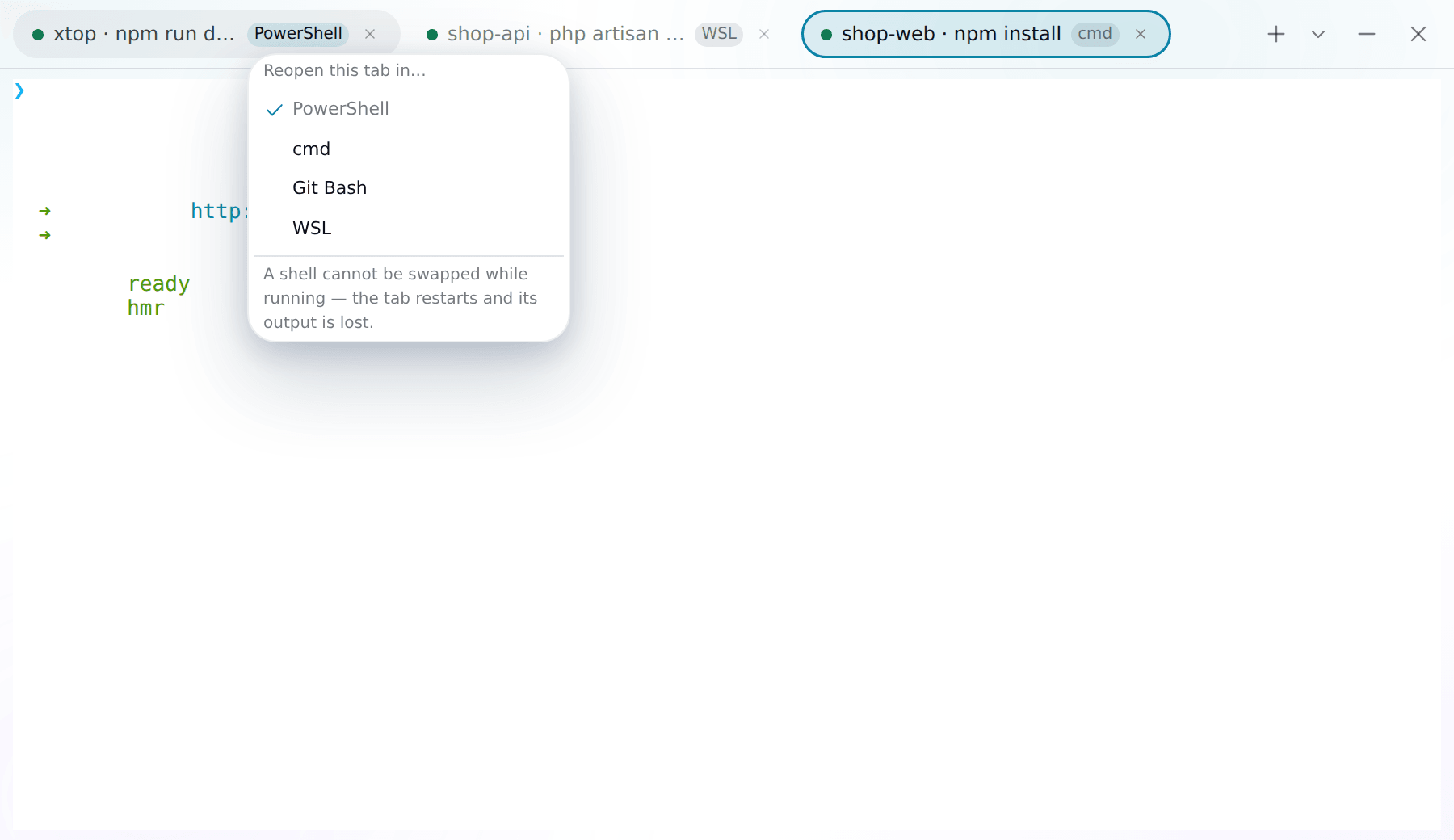
Click it and pick another shell, and the same folder opens there. The tab keeps its place in the strip.
The tab restarts
A running shell cannot be swapped. Choosing another one closes the session and starts a new one, so whatever was on screen is lost — and anything still running stops.
If the shell cannot start — WSL is not installed, the distro is gone, the folder has moved — the terminal says which, in the same words the panel would have used.
Real sessions
These are real terminals, not output windows: you can answer a prompt, press Ctrl+C, or run vim if you want to.
On the rare machine where the interactive part cannot load, the app shows the output but does not accept typing — and says so in a banner at the top, so you are not left wondering why the keyboard does nothing.
Suggestions while you type
From the second character on, the terminal offers commands you already have. The list is drawn from every command saved anywhere in the app and everything you have typed before — not just this project's. The command you want next is often the one you ran in the project next door, so nothing is filtered by project; where an entry comes from is shown as a badge on the right instead.
Up to six show at a time. Exact prefix matches come first, then saved commands ahead of ones that were merely typed once. When the highlighted entry starts with exactly what you typed, the rest of it appears as dimmed ghost text at the cursor.
| Key | Action |
|---|---|
| ↑ / ↓ | Move through the list |
| Tab | Accept the highlighted command |
| Ctrl+Shift+→ | Accept one word of it, so you can keep typing your own arguments |
| Esc | Dismiss |
Enter stays the shell's until you have actually moved the highlight — a popup you were ignoring must never swallow the command you meant to run.
The list closes by itself the moment what XTop thinks you typed stops matching what is really on the screen — after a redrawn prompt, a shell completion, or PSReadLine rewriting the line. Better nothing than a wrong guess.
What lands in history
The last 300 commands are kept, most-recently-used first, in the app's data file — not in your shell's own history. Anything shorter than three characters is ignored.
Keeping one out
Start the line with a space and it is never recorded — the same convention bash uses. Useful for a one-off that carries a token or a password.
Keys inside the terminal
| Key | Action |
|---|---|
| Ctrl+C | Copies if text is selected; with nothing selected it stops the running command, which is what the key is usually for |
| Ctrl+Shift+C | Always copies |
| Ctrl+V | Paste |
| Ctrl+click a URL | Open it in the browser. Ctrl is needed on purpose, so dragging a selection over a link never opens one |