
Getting started
The island and the tray
XTop runs in the background, like any tray app. There are three ways to reach it:

- The island — a small black capsule hanging from the middle of a screen edge, above every window and on every virtual desktop. Point at it for the four services, click it to open it. It stays where it is, and pins itself again if you unplug the monitor it was on.
- The tray icon — left-click opens the panel. Right-click gives you: Open panel, Notes, API tester, Athkar (only when Islamic mode is on), Show island, Start with Windows, and Quit XTop.
- Ctrl+Shift+Space — toggles the panel from anywhere.
Windows decides whether the tray icon shows on the taskbar or hides under the ^ menu. Drag it in or out of there, or set it in Settings → Personalization → Taskbar → Other system tray icons.
Don't want the island at all? Turn off Show the island and use the tray icon and the keyboard shortcut instead.
The four services
Point at the capsule and it stretches out, carrying the four things you reach most often.

| Button | Opens | Shortcut |
|---|---|---|
| Notes | Notes — the global notebook | Ctrl+Shift+7 |
| API tester | API tester — on a fresh scratch tab | Ctrl+Shift+9 |
| Meetings | Meetings — the window, without recording | Ctrl+Shift+1 |
| New recording | New recording — starts recording straight away | Ctrl+Shift+3 |
Click anywhere on the capsule that is not a button and it opens into a panel with your projects, a chat with X, and a New tab. That is all in The island.
While a meeting is recording

The capsule becomes a clock. Point at it and you get pause, screenshot and stop. The screenshot button lets you drag a rectangle on any screen and saves the picture into the meeting — see screenshots.
Hide the island and bring it back mid-meeting and it still knows a recording is running.
Ctrl+Shift+3 works the same way — the same key starts a recording and stops it, so you never have to go and find the window.
Ask X about anything
The robot on the capsule can be dragged onto any window on your screen. X reads that window and opens a chat about it — and it answers using the AI tool you already have installed, with no API key. See X Agent.
Closing is not quitting
Closing the panel leaves the app running. Use Quit XTop in the tray menu to actually stop it.
The panel
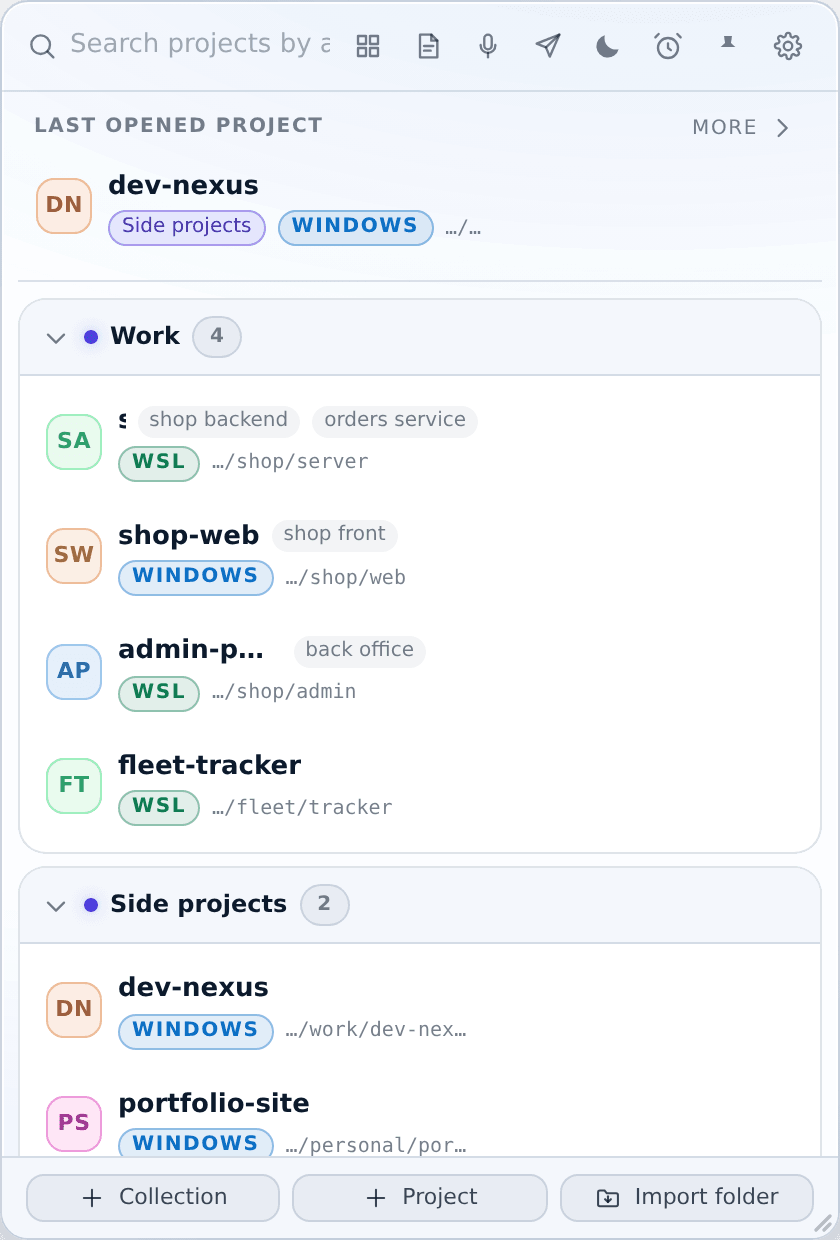
The header, left to right: search, the list/card view toggle, notes, meetings, API tester, Islamic mode, reminders, the pin, and settings.
The body shows your last opened project, a short Recently opened list, and then your collections. The footer adds a collection, adds a project, or imports a whole folder.
The panel hides when it loses focus, unless you pin it.
Your first collection
- Open the panel and click Collection in the footer. Name it — Work, Side projects, whatever fits.
- Click Project to add one by hand, or Import folder to point at a folder and let XTop scan it: every subfolder holding a
.gitdirectory or a package manifest is offered, and you tick the ones you want. - For each project, set its environment — Windows or WSL. That is what decides whether "open a terminal" means PowerShell or
wsl.exe -d Ubuntu --cd <path>.
Then type in the search box and press Enter. The whole app is built around that one loop.
Two languages
English by default. Switch to Arabic in Settings → Language and every window changes to Arabic and flips to right-to-left straight away, including windows that are already open. The choice is saved.
Where to go next
- Panel & projects — search, aliases, collections, the row actions.
- Keyboard shortcuts — the whole list.
- Settings — every option, explained.