
The island
The island is the front door. It is a small black capsule that hangs from the middle of a screen edge, above every window and on every virtual desktop.

It does not get in the way, and it does not move around: it stays pinned to its edge, and if you unplug a monitor or change resolution it pins itself again on whatever screen is left.
Point at it
Move the pointer onto the capsule and it stretches out, showing the four things you reach most often.

| Button | Opens | Shortcut |
|---|---|---|
| Notes | The global notebook | Ctrl+Shift+7 |
| API tester | A fresh scratch tab | Ctrl+Shift+9 |
| Meetings | The window, without recording | Ctrl+Shift+1 |
| New recording | Starts recording straight away | Ctrl+Shift+3 |
Move the pointer away and it shrinks back.
Open it
Click anywhere on the capsule that is not a button and it grows into a small panel with three tabs.
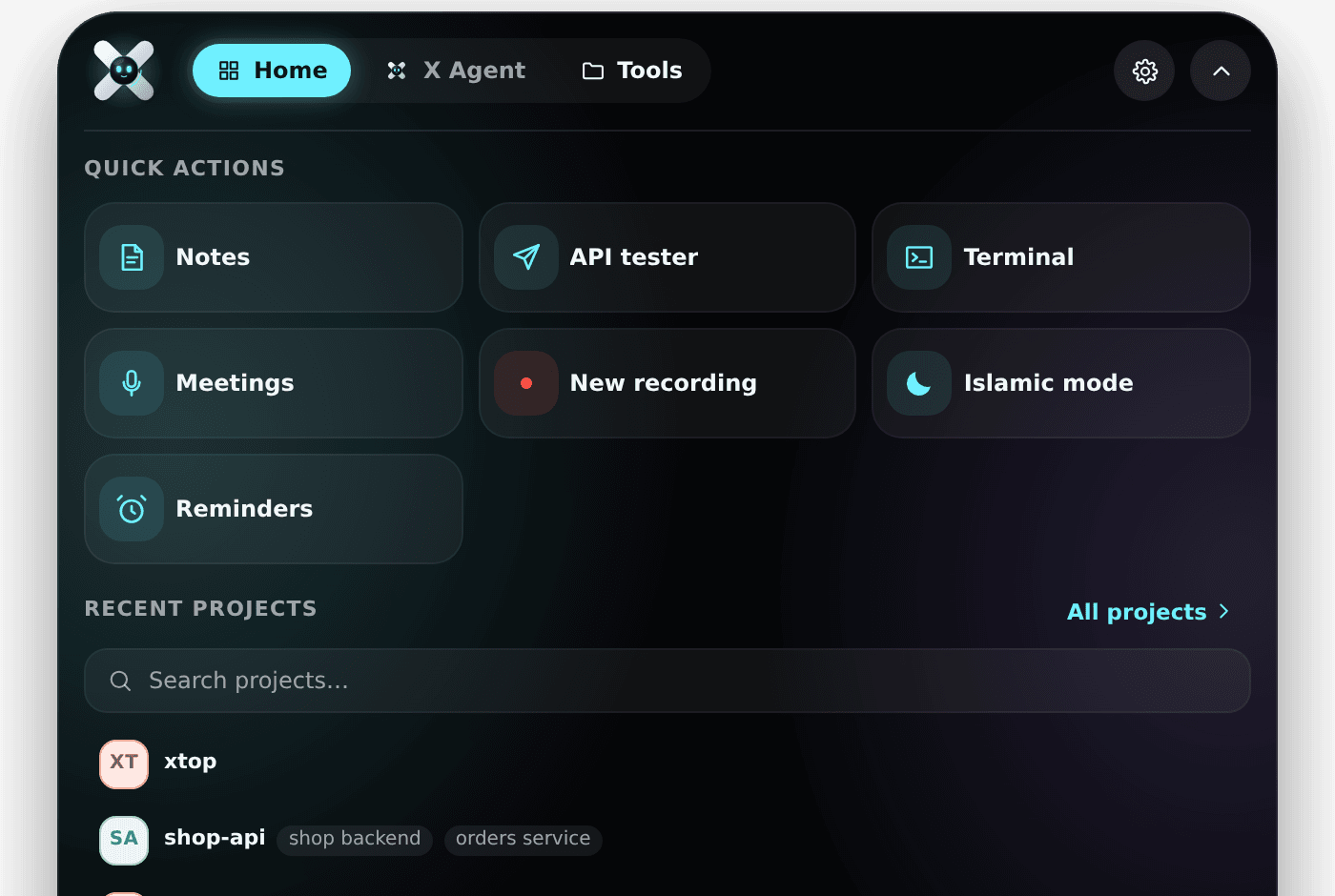
Home has the same four actions as a row of tiles, then your recent projects. Click a project to open it in its IDE. Type in the search box to narrow the list — Enter opens the first match.
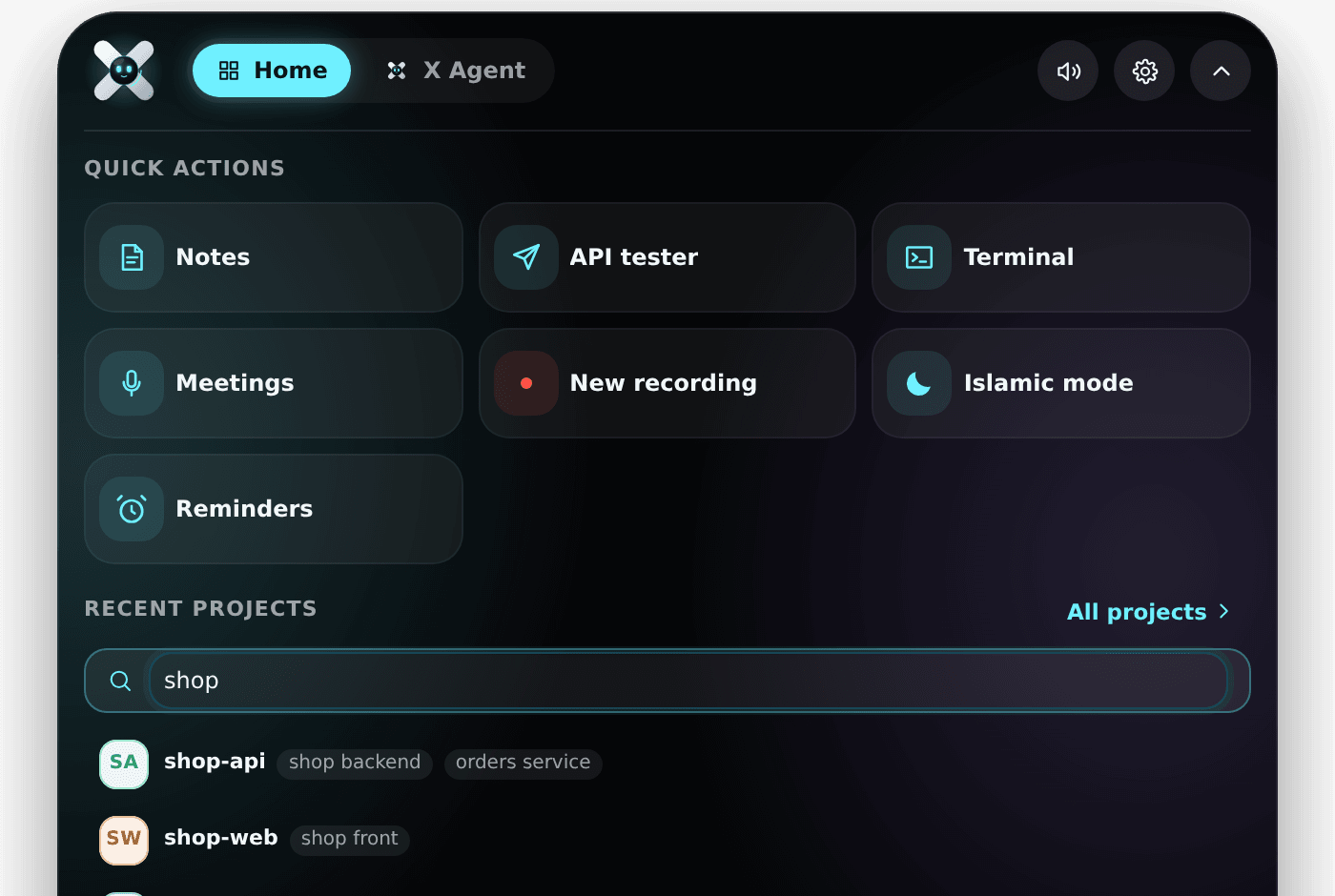
All projects opens the full hub, which is the panel described in Panel & projects.
Chat is where you talk to X — see X Agent.
The two buttons at the top right mute the app's sounds and open Settings. The chevron closes the panel; so does moving the pointer away.
Right-click a project
Every project in the list has a menu with everything you would otherwise go to the hub for.
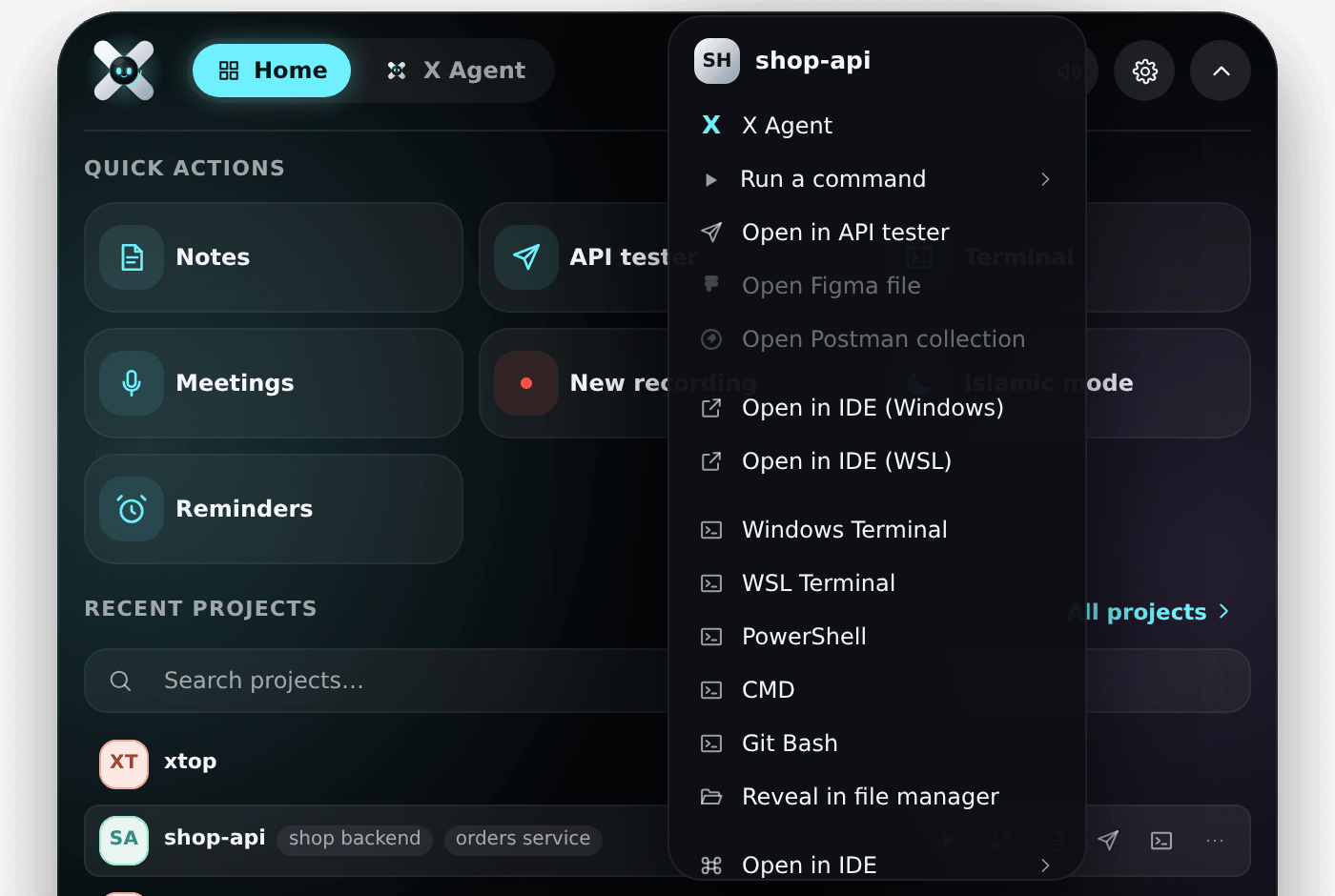
Ask X about it, run one of its commands, open it in the API tester, open its Figma file or Postman collection, open it in your IDE, open a terminal in it (Windows Terminal, WSL, PowerShell, cmd, or Git Bash), show it in Explorer, copy its path, or jump to its commands, Git info, notes, or settings.
If no Figma file or Postman collection is linked yet, those two entries say so and tell you how to link one — which is the next section.
While a meeting is recording
The capsule becomes a clock.

Point at it and three buttons appear: pause, screenshot, and stop. Pause and resume as often as you like; the clock stops with it. The screenshot button lets you drag a rectangle on any screen, and the picture is saved into the meeting — see screenshots.
Hide the island and bring it back mid-meeting and it still knows a recording is running.
Ctrl+Shift+3 both starts and stops a recording, so you never have to go and find the window.
Drop things on it
Drag files, images, selected text, or a link onto the capsule. It opens up to catch them, and whatever you dropped is attached to the chat, ready for you to ask about it.
Drag X onto a window
The little robot on the left of the capsule can be picked up. Grab it and drag it anywhere on the screen: it flies along with the pointer.
Let go over any window and X reads that window — its title, the app it belongs to, the page address if it is a browser — and takes a picture of just that window.
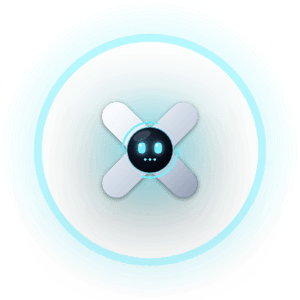
What happens next depends on where you dropped it:
On Figma or Postman — the island offers to link that file or collection to one of your projects. Paste the link, pick the project, and from then on the project's menu opens it directly.
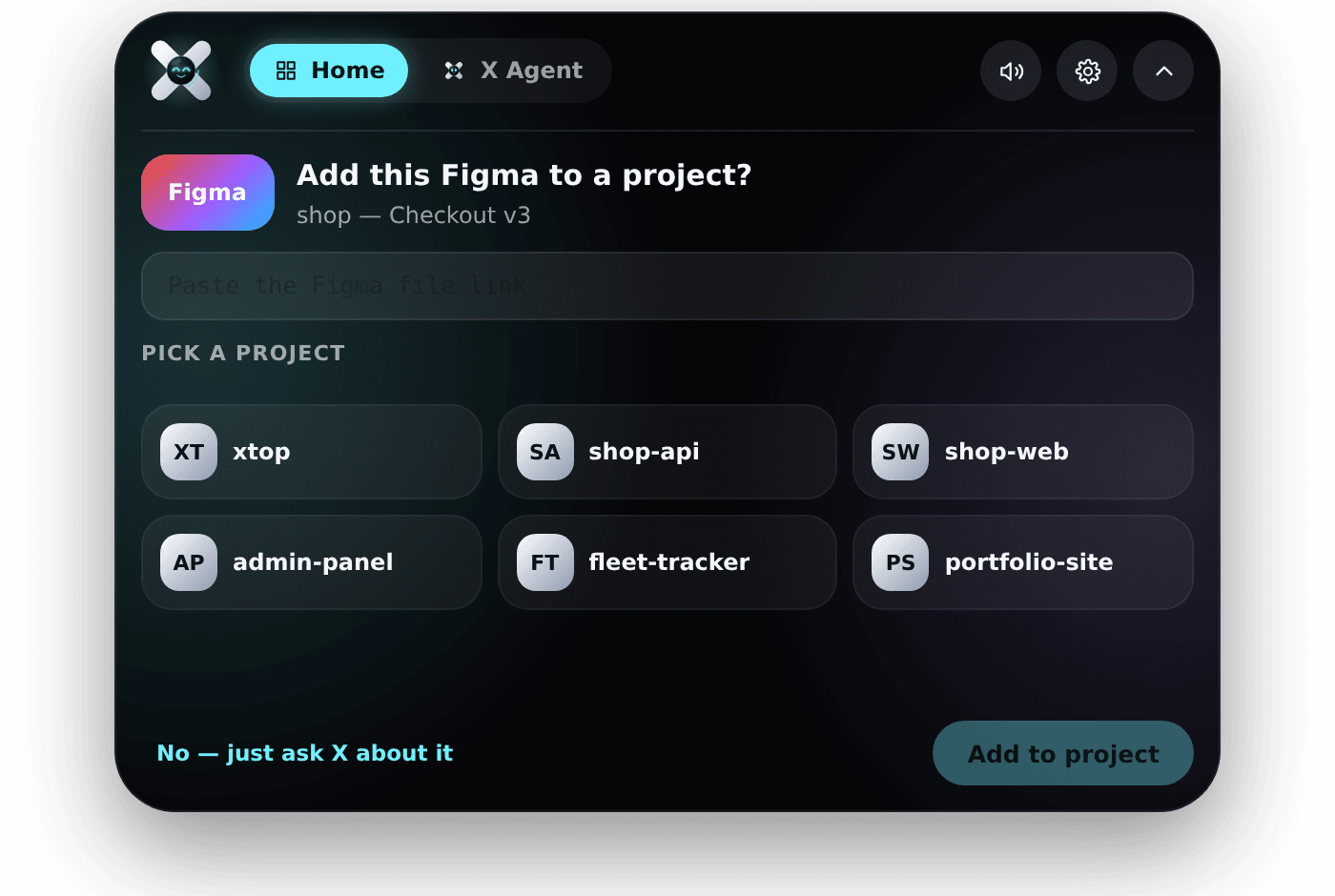
Dropped on Figma: link it to a project, or just ask about it. On anything else — the chat opens with the picture attached and the window as context, ready for a question like "what is this, and what can I do here?"
Drop X back on the island to cancel. If there was nothing worth looking at, it shrugs and says so.
Where it sits, and hiding it
Three settings control the island, all in Settings:
- Show the island — turn it off entirely and use the tray icon and the keyboard shortcut instead.
- Island position — top, bottom, left, or right edge of the screen. It moves as soon as you pick.
- Auto-hide the island — it tucks itself into the edge and leaves only a sliver showing. Point at the sliver and it slides back out.
In the tray menu, Show island is a tick you can clear. If the island ever fails to load, that entry becomes Restore island instead.