
X Agent
X is the robot on the island. Open the island and pick the Chat tab, and you can ask it about your projects — or about whatever window you dropped it on.
No API keys
X does not talk to any AI service of its own, and XTop never asks you for a key.
Instead it runs the AI command-line tool you already have, on the subscription you already pay for. XTop looks for these, on Windows and inside WSL:
| Tool | Runs on |
|---|---|
| Claude | Claude Pro / Max |
| ChatGPT (codex) | ChatGPT Plus / Pro |
| Gemini | A Google account, free |
| OpenCode | Free models, or any provider you set up |
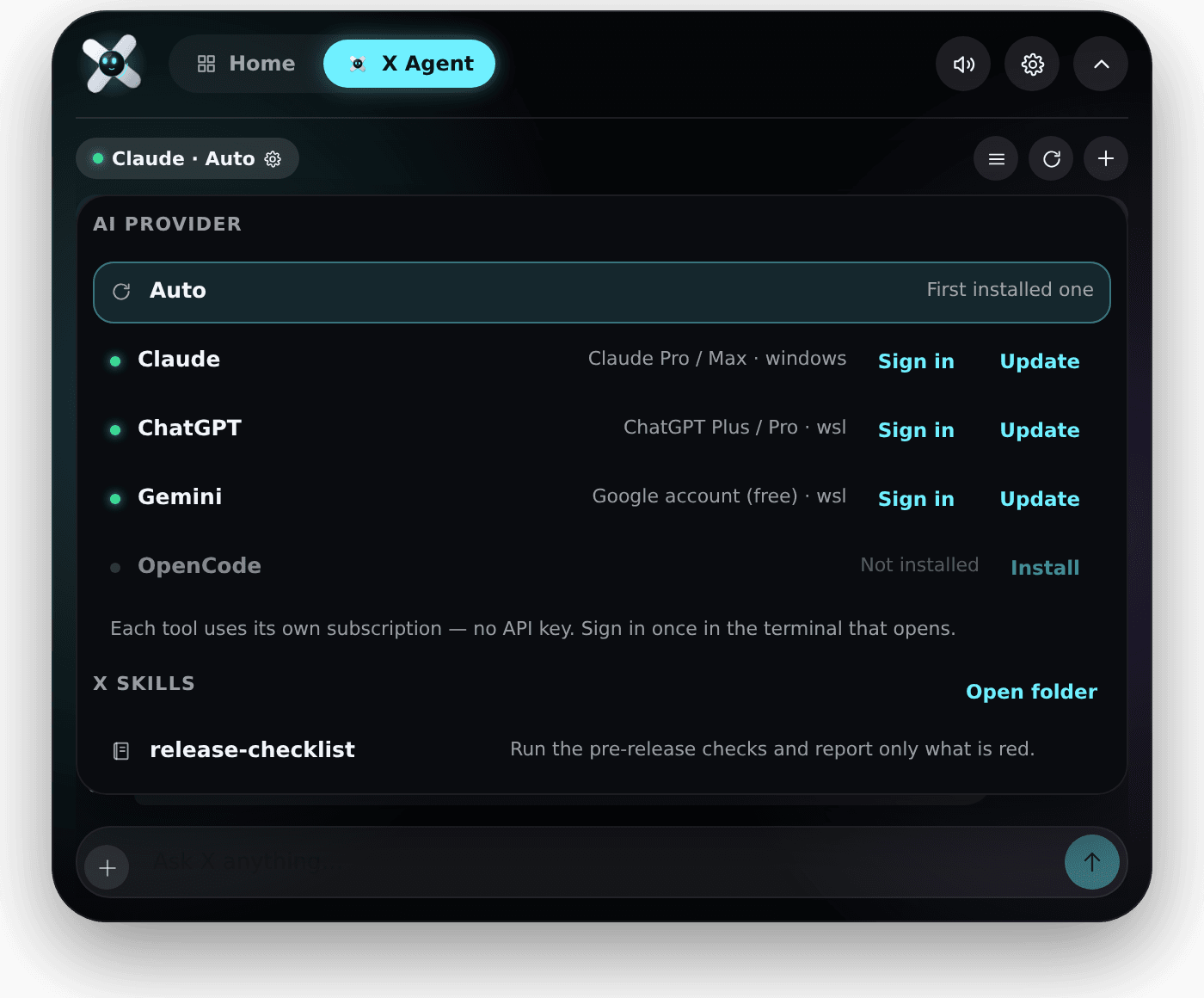
Click the name at the top left of the chat to see the list. A green dot means XTop found it. Auto simply uses the first one it finds.
If a tool is missing, Install opens a terminal with the install command ready. If it is there but not signed in, Sign in opens a terminal and the tool asks for your account — once, not every time.
Ask, Edit, Full
Pick a project at the top of the chat, and three buttons appear next to it. They decide what X is allowed to do in that folder.
| Mode | What X may do |
|---|---|
| Ask | Read the project. Changes nothing. |
| Edit | Read and change files. |
| Full | Change files and run commands — tests, builds, installs. |
Full is the one to think about: in that mode X can run any command in the project without stopping to ask. The chat says so, under the buttons.
Without a project, X answers as a plain chat and the three modes are off — there is no folder for it to read.
Next to the modes is the model. Leave it on Default to use whatever the tool picks, choose one from the list, or type a model name yourself.
What X is doing
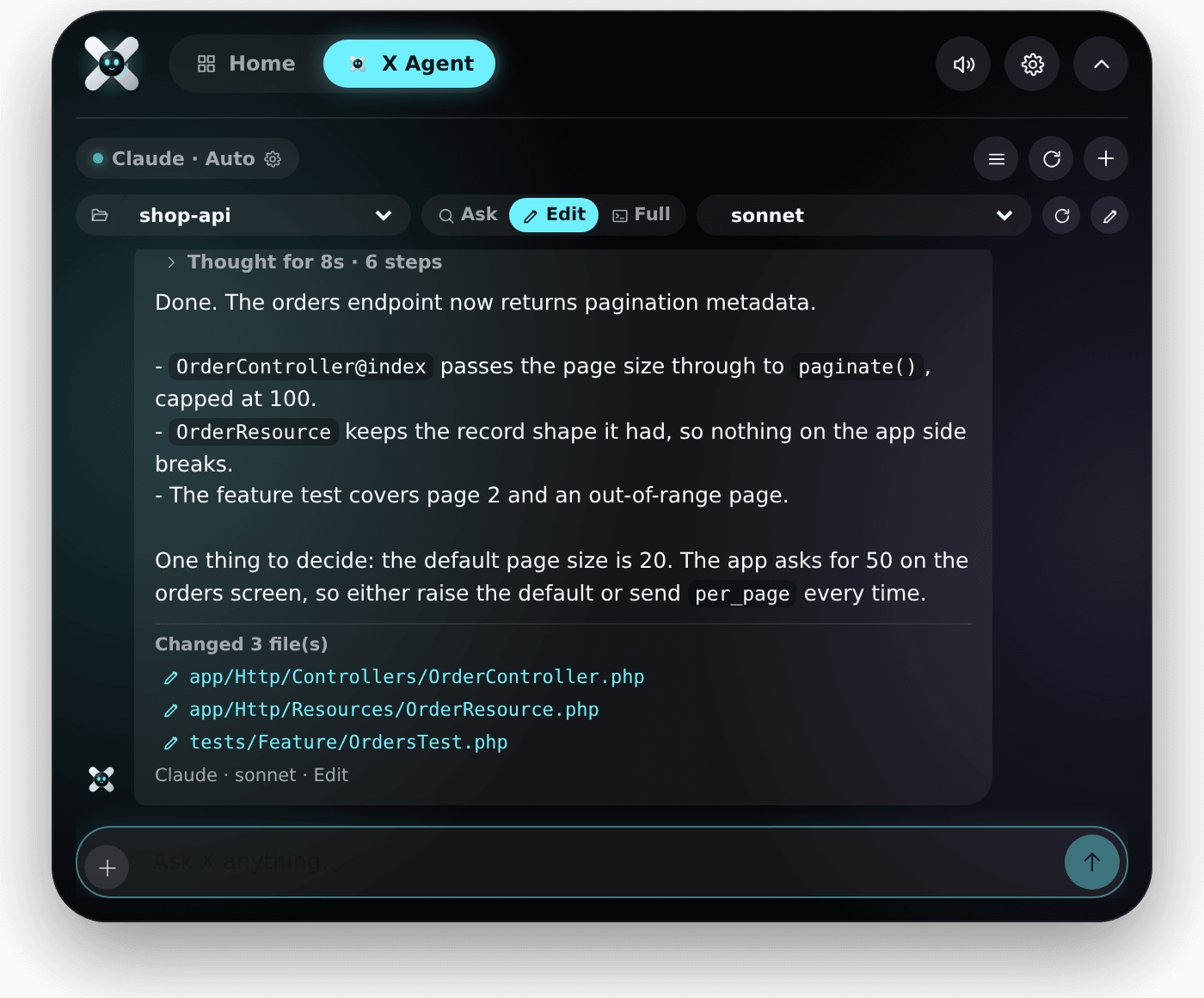
While X works, the chat shows its plan ticking off step by step and a line saying what it is on right now — reading a file, searching, running something, editing.
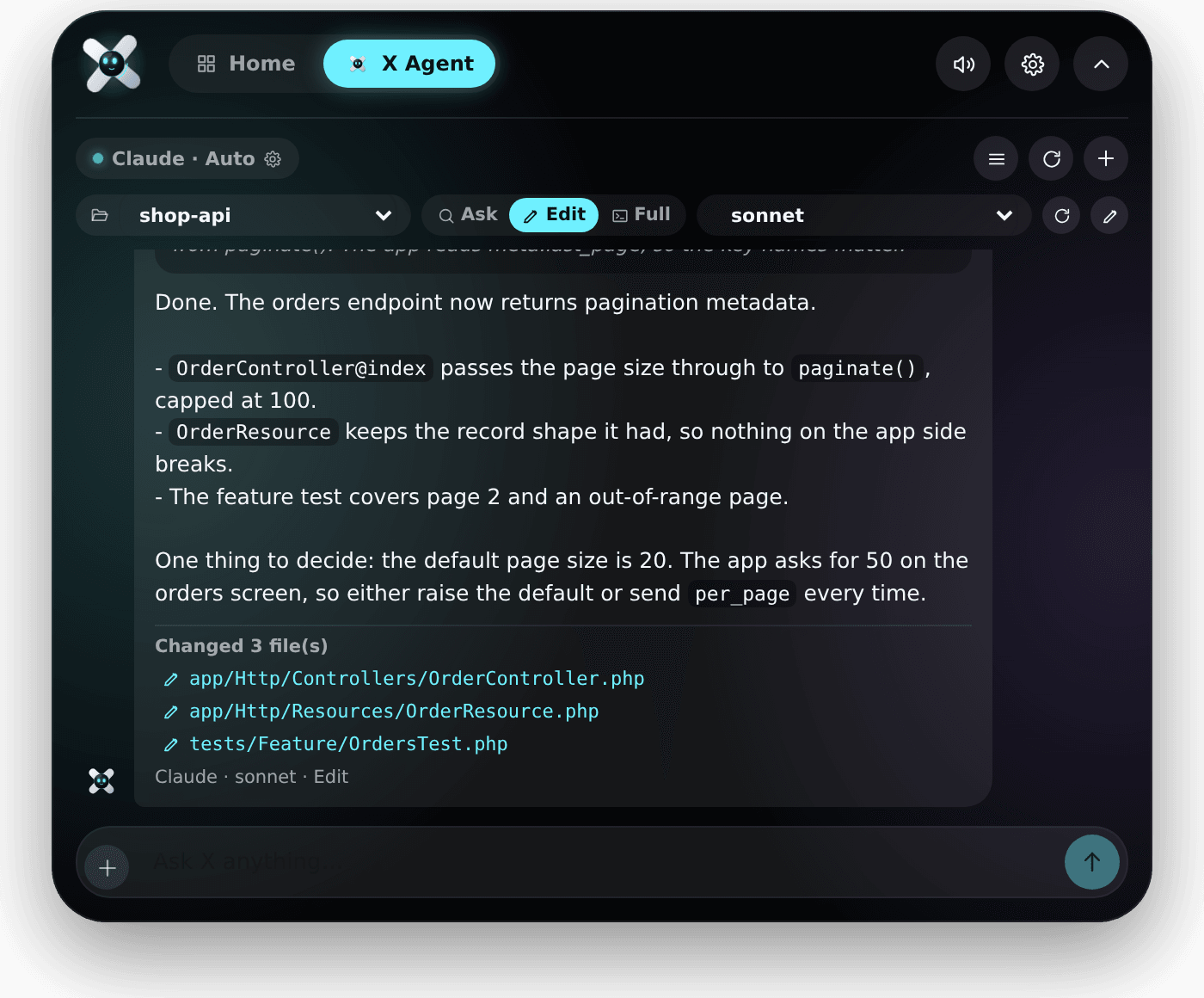
When it is done, that collapses into one line — Thought for 8s · 6 steps — which you can click to open again.
If any files changed, they are listed under the answer. Click one to open it.
Stop ends a reply early. The answer so far stays in the chat.
You can close the island while X is still working. The capsule becomes a slim pill that keeps you posted.

When the answer lands, the capsule says X answered — tap to read. Tap it and the chat opens on the reply.
Chat history
Every conversation is kept. The list button at the top right of the chat shows them, newest first, with the project each one belongs to. Click to carry on, or delete the ones you are done with.
The + button starts a fresh chat. Switching project also starts a new one — a conversation never changes folder halfway through.
X skills
A skill is a short set of instructions you teach X once and reuse. Ask it to save this as a skill at the end of a conversation that went well, and it writes one.
Skills are listed under the tool picker, and Open folder shows them on disk: each one is a plain SKILL.md file you can edit by hand. They work with every tool, so a skill written while using Claude still applies when Gemini answers.
Everything stays on your machine
The conversation, the skills and the files X reads never leave your computer except through the AI tool you chose — the same tool you would have run in a terminal yourself.