
Panel & projects
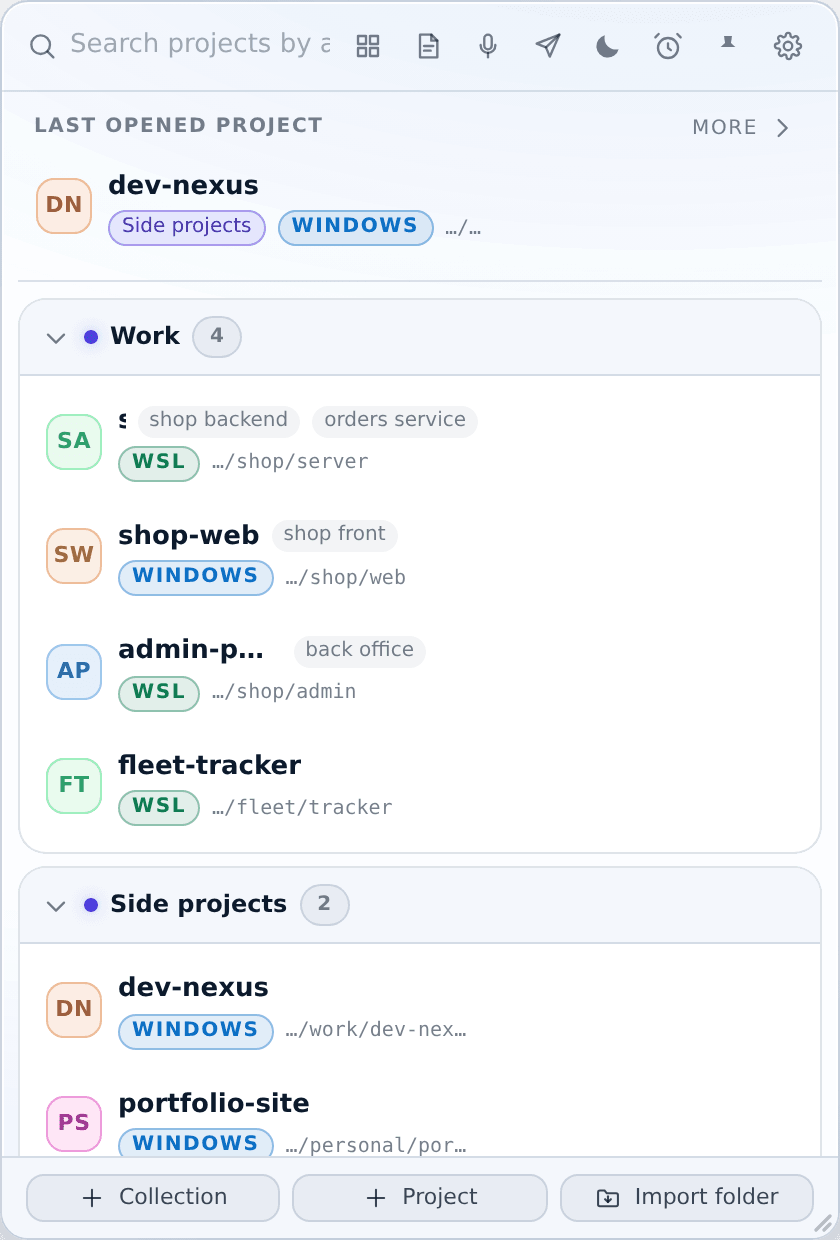
The panel is the main window. Everything else in XTop opens from it.
Search
The search box has focus the moment the panel opens, so the whole flow is: press the shortcut, type, press Enter.
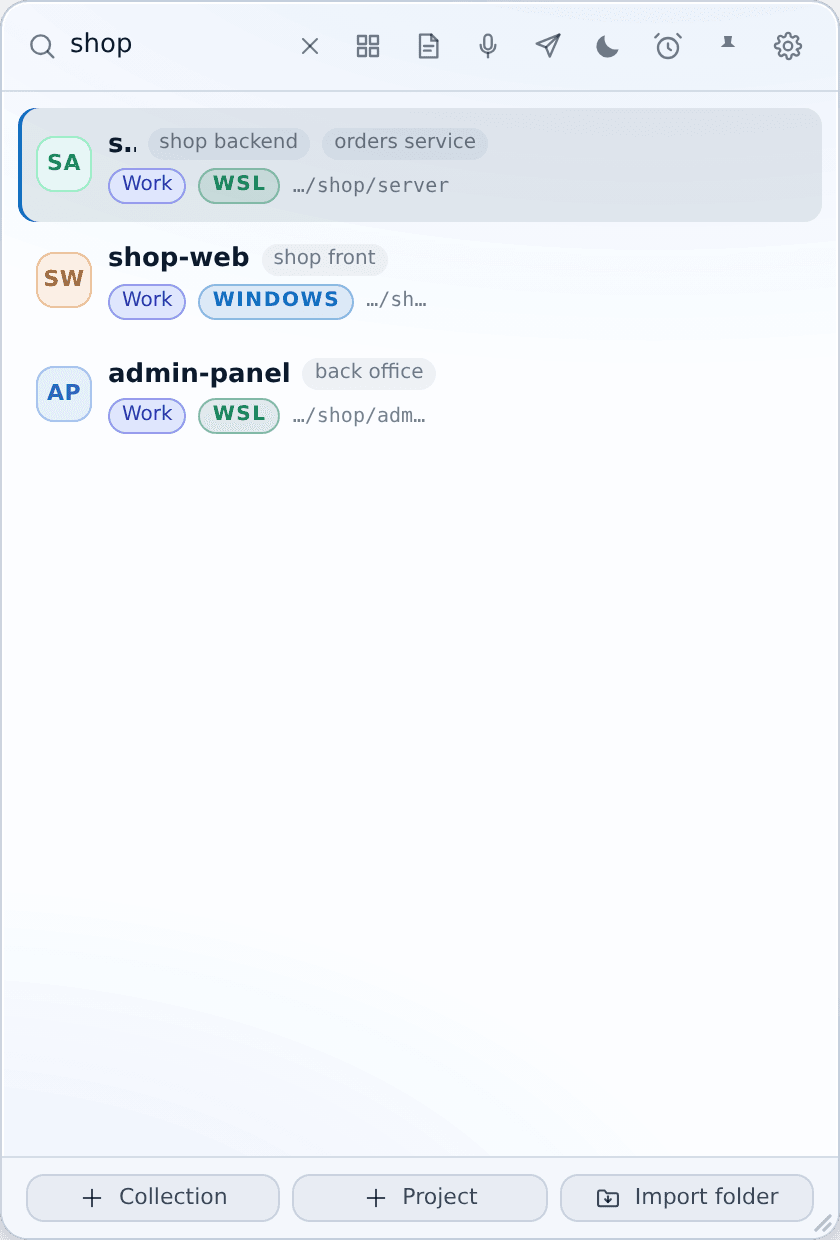
Search looks at the project name, its other names, its folder path, and its collection name. It ignores capital letters, spaces, dashes, dots and underscores, so shop api finds shop-api.
If the match came from another name, that name is shown next to the project, so you can see why the row appeared.
| Key | Action |
|---|---|
| ↑ / ↓ | Move through the results |
| Enter | Open in the IDE |
| Shift+Enter | Open a terminal |
| Esc | Close the panel |
Collections
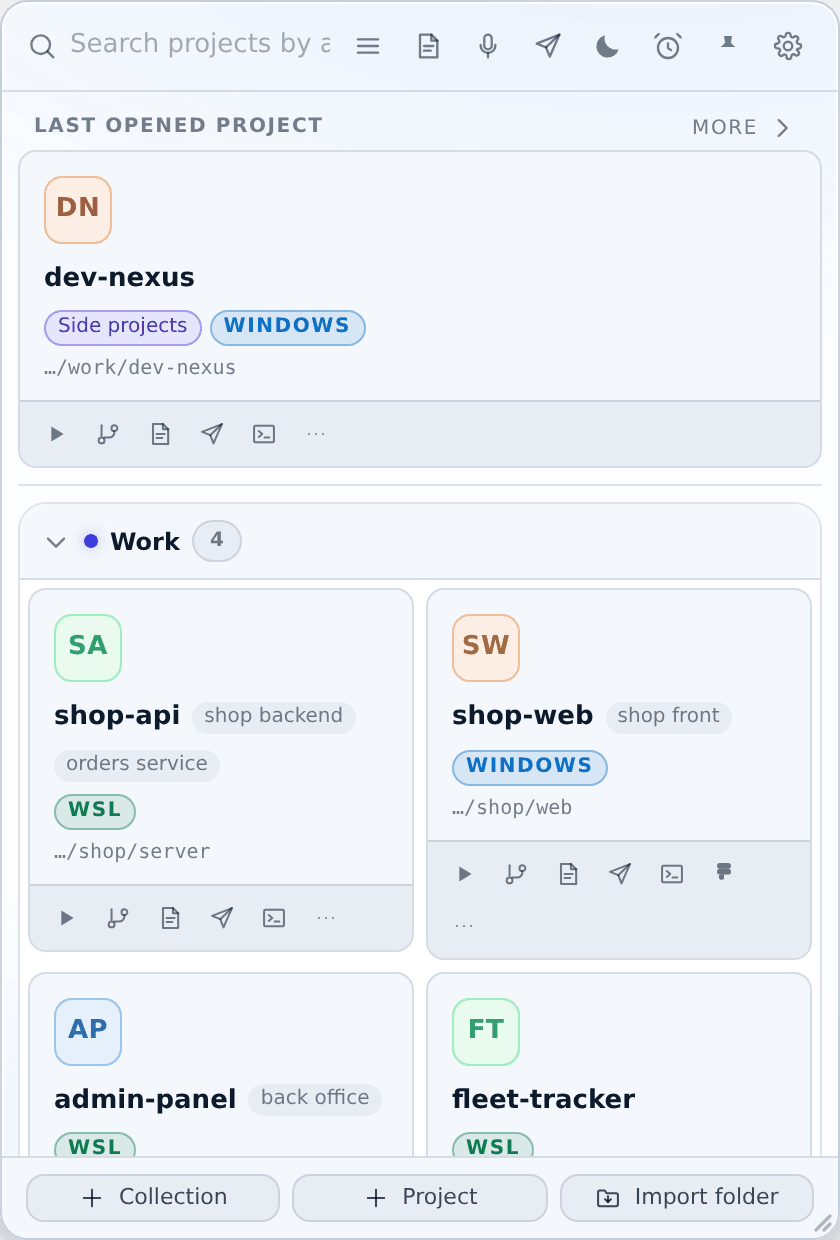
Projects live in collections — Work, Side projects, one per client, however you like. You can rename a collection, move it, or fold it down to one line, and it shows how many projects it holds.
A collection can also hold commands, which then show up in every project inside it. See Quick commands.
Adding projects
Two buttons in the panel footer add a project:
- Project — add one by hand.
- Import folder — point at a folder and XTop scans it for subfolders holding a
.gitdirectory or a package manifest, then lets you tick the ones you want. This is how you onboard an entire work drive in one go.
The third footer button, Collection, makes a new collection to sort them into. Nothing is locked in place afterwards — drag a project to another collection whenever you like.
However it was added, the project's own manifests are read and its commands come with it — npm run dev, make build, docker compose up — so it is runnable the moment it lands. See commands arrive with the project.
What a project holds
| Field | Why it matters |
|---|---|
| Name | The main label, and the first thing search matches |
| Other names (aliases) | Any number of extra searchable names — type one and press Enter or , |
| Path | The folder on disk |
| Environment | windows or wsl — decides whether a terminal is PowerShell or wsl.exe -d <distro> --cd <path>, and which version of the IDE opens |
| Default IDE | Overrides the global default for this project |
| Figma link | Adds a Figma button to the row |
| Postman collection id | Adds a Postman button to the row |
| Open on startup | See Startup projects |
The project row
Hover a row and its actions appear.
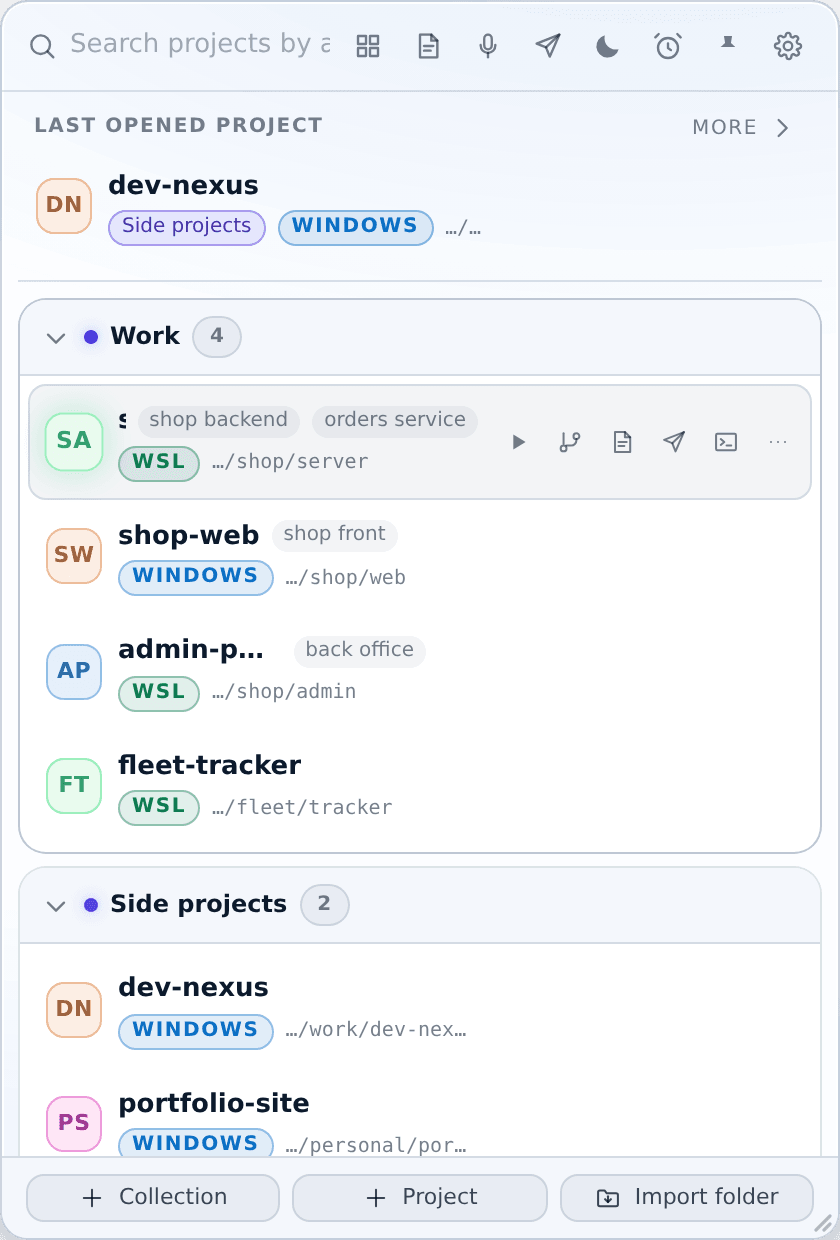
Left to right: run a command, git info, notes, API tester, terminal, then Figma and Postman if the project has them, and finally the ⋯ menu.
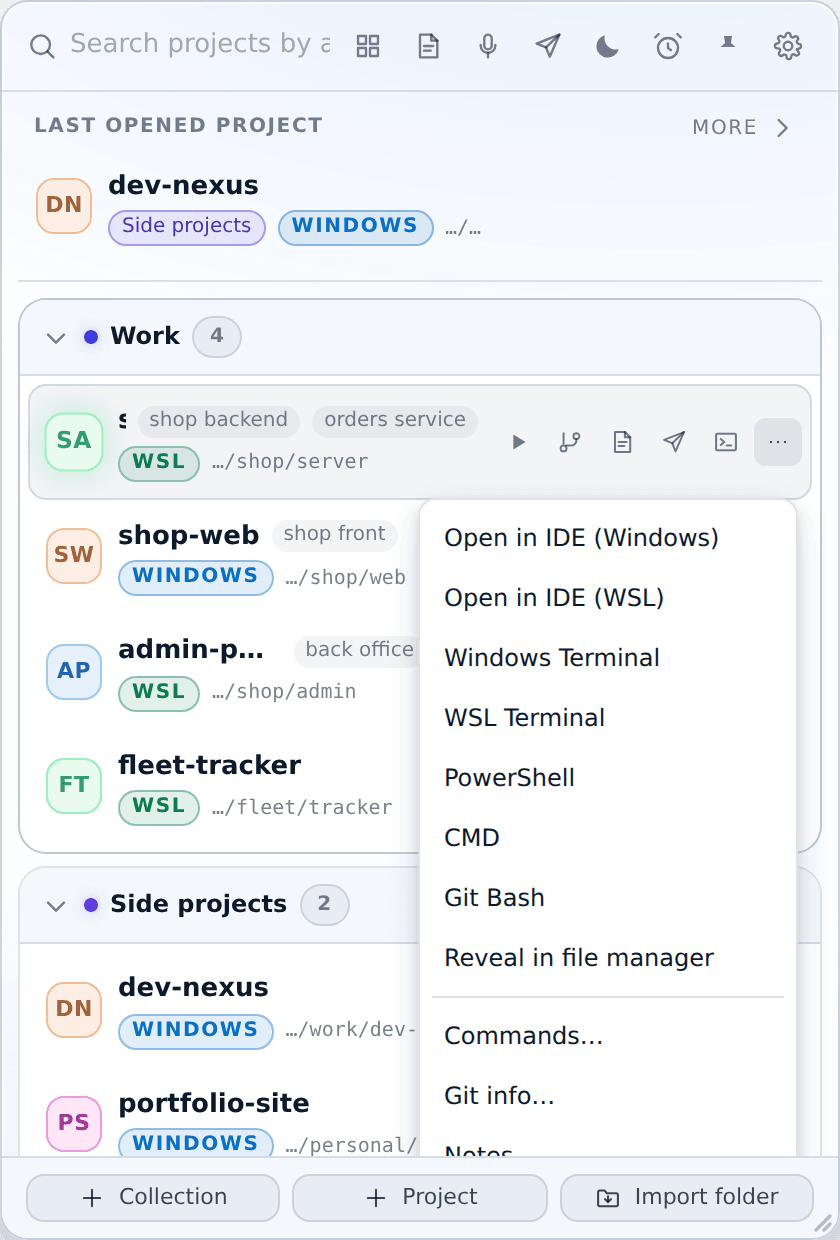
The ⋯ menu holds the other ways to open the project: the IDE on the Windows side or the WSL side, each type of terminal on its own, show the folder in File Explorer, copy the project's path, manage commands, edit, and delete.
Greyed-out WSL entries
If WSL is not installed, is only the Microsoft Store placeholder, or has no distro set up, the WSL entries are disabled and tell you why, with a link to Microsoft's install page. If XTop cannot tell for sure, nothing is disabled.
List or cards
The first header button switches between the list and a card grid. The choice is remembered.
Recently opened
Above the collections, the panel shows your last opened project and a short Recently opened row. More shows the rest, Less folds it back.
Pinning
The panel hides when you click somewhere else. The pin in the header keeps it open — useful while you are dragging projects between collections or reading git output.